<< BACK TO KLOUDGEM.COM HOME

Wednesday, August 19, 2020

Part 3: Shared drives section - Are You Constantly Looking for Files in Your Google Drive?

This time, in this multi-part series that is designed to help you orient yourself and/or your users in Google Drive, we are going to talk about Shared drives. (Please note that at this time, the Shared drives feature is only available in the G Suite Business, Enterprise, Education, Enterprise for Education, Nonprofits, and Essentials editions. The feature is not available in the G Suite Basic edition or in the free Gmail-based Google Drive. However, G Suite Basic or Gmail.com users can still be invited to collaborate in a Shared drive environment.)

The Shared drives section of Google Drive (available in certain G Suite editions)


Tips for end-users and small businesses:

Last time we talked about how the My Drive section of Google Drive works, and we said it was highly customizable to and by each user. My Drive lets me organize files and folders the way I want, and you the way you want. This ensures flexibility, but in a collaborative, team environment, it can result in some team members seeing a different folder structure than others, because they may have chosen to organize their content differently.

Shared drives in Google Drive

Shared drives take the guesswork out of the folder structure issue, as every member will see the same structure (and only members with certain access levels can add members or move content within a Shared drive). 

Access levels are set as: 
  • Manager (highest level; this role is like file Owner in My Drive, the difference being that multiple people can be assigned this Manager role in a Shared drive; people in this role have full rights on the Shared drive including membership management) 
  • Content manager (people in this role can organize folders and content and have edit rights)
  • Contributor (people in this role have edit rights, but there is a limit on their ability to organize content in a Shared drive; they can create and upload files)
  • Commenter 
  • Viewer
Did you know? Shared drives used to be called Team Drives.

Is there anything else that keeps you scratching your head in Google Drive? Let me know in the Comments below.


Tips for mid-size companies and large enterprises:

Shared drives are best used by teams as a file storage and collaboration area in Google Drive. Files in a Shared drive are effectively owned by its members, and even if some members leave the organization, their Shared drive files will not be deleted with the user's account, because the other members will continue to own them and keep access to them.

Note though that by virtue of someone being a member of a Shared drive, they will be able to see all the files and folders in that Shared drive.

Need help taming your Google tools or training your users? Contact me for a free first consult: https://www.kloudgem.com/get-in-touch/contact 

Do you know someone who could use these KloudGem tips? Feel free to send them this link: https://www.kloudgem.com/follow-resources/newsletter 

KloudGem website: https://www.KloudGem.com

Wednesday, August 12, 2020

Part 2: My Drive section - Are You Constantly Looking for Files in Your Google Drive?

Next up is the My Drive section in this multi-part series that is designed to help you orient yourself and/or your users in Google Drive.

The My Drive section of Google Drive

Tips for end-users and small businesses:

If there is one phrase that describes Google Drive's My Drive file storage space, it is: highly customizable. You decide what goes into your My Drive section. This means that your folder structure in your My Drive may look very different from mine, even if we collaborate on the same content as a team; this is because Google lets me organize content the way I want and you the way you want. Each user decides what to put into their My Drive and what not to put in there.

image of Google Drive's My Drive section

In the My Drive section you can have 2 kinds of content:

  • Content that you created: folders, or Google native files, or files you uploaded (such as PDFs or Microsoft Office files, etc.).
👉If you go to Google Drive and just create (or upload) a file, it will get created (or uploaded) directly under the top-level My Drive.
👉If you go to Google Drive and access a folder and then create a file, the file will get created (or uploaded) in that particular folder.


Pro Tip 1: If you ever get confused about your My Drive folder structure, you can see it in its entirety if you click the tiny triangle/arrow next to My Drive on the left (see screenshot above).
Pro Tip 2: If you are inside a particular folder in My Drive and your head is spinning, wondering where exactly you are in a larger folder structure, you can look at the folder path at the top of your screen (directly under the search bar).
Pro Tip 3: When you see a small gray triangle/arrow, like the one next to My Drive, it invariably hides more content. Click it; open it up. It is likely to help you. (You will see a similar triangle/arrow in the right-hand side of the search box, too, facing down. That one will help you with your Google Drive searches. We'll talk about that in another post.)

  • Content that got shared with you AND that you chose to add or shortcut into your My Drive.
Remember the Shared with me section we talked about last time? If there are files or folders you received in the Shared with me section that you use all the time, I recommend you adding a shortcut to them in your My Drive using the right-click menu. That should make it easier to access those files or folders on a regular basis.
Only accessing a file once or twice? Don't bother to add/shortcut it to your My Drive. That way you can avoid clutter.

So this is what I mean by "highly customizable." It is only your files/folders AND the files/folders belonging to others that you choose to show in the My Drive section that you will see there.
Pro Tip 4: If you are shortcutting a folder structure that you collaborate on into your My Drive, shortcut the top-most folder you have access to. This will help you keep your shortcuts to the minimum and see a more holistic structure.

For example, if you have a team folder structure like:
Team folder
|_ Project folder
|_ Project ABC collaborative work
|_ Project DEF collaborative work
avoid shortcutting the lower level Project ABC collaborative work or Project folder or loose files within; instead, shortcut Team folder (highest) so you can see the entire structure and contents.
Is there anything else that keeps you scratching your head in Google Drive? Let me know in the Comments below.

Tips for mid-size companies and large enterprises:

Pro Tip 5: Consider training your users on folder sharing best practices, such as:
Users who are new to the world of Google Drive often create files directly under their My Drive section and as time passes, they accumulate more and more files to a point where they feel that everything is cluttered and they are constantly looking for files.
Rather than sharing each file, they could consider sharing folders. OR
Sharing the top-most folder to the smallest audience and the deepest folder with the largest. (If they try the reverse, they may find themselves, needing to take away access rights at certain levels from those who are not privy to certain information. This is not only cumbersome, but also error-prone!)

For example, if you have a team folder structure like:
Management folder (share with management only)
|_ Team folder (from this folder down, share extra with internal working team)
|_ Project folder
|_ Project ABC collaborative work (from this folder down, share extra with a vendor if needed)
|_ Project DEF collaborative work (from this folder down, share extra with a vendor if needed)
Need help taming your Google tools or training your users? Contact me for a free first consult: https://www.kloudgem.com/get-in-touch/contact
Do you know someone who could use these KloudGem tips? Feel free to send them this link:
KloudGem website: www.KloudGem.com

Monday, August 3, 2020

Part 1: Shared with me section - Are You Constantly Looking for Files in Your Google Drive?

Do you find yourself wondering where your file went that you just created in Google Drive, or where to find the file that your colleague shared with you yesterday? And generally, what's the rhyme or reason to the organization of the content in Google Drive?


Wonder no more! I will show you the lay of the land in a multi-part series.


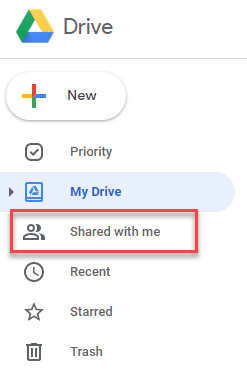
The Shared with me section of Google Drive

Though it's not at the top of the Google Drive interface, let's start with the Shared with me section, as this often causes a lot of head-scratching.


Google Drive - Shared with me

Tips for end-users and small businesses:

Not to be confused with Shared drives (in G Suite editions where that feature is available), think of the Shared with me section as a catch-all bucket. It catches every single piece of content that's been shared with you.


So if you have been looking for the file your colleague shared with you yesterday, try the Shared with me section of your Google Drive; you'll likely find it there. Alternatively, you can search for your document -- but let's not get ahead of ourselves; we will cover that in another post.


The Shared with me section shows you the document or folder shared with you, and who it is owned by. Additionally, it lets you sort by share date, by last modification, or by the date you last interacted with the document.


Once you've located the content you were looking for, you can even shortcut it into your own My Drive section if you think you will use it often. More on that next time!


Tips for mid-size companies and large enterprises:

The Shared with me section is often an enigma to end-users who are new to Google Drive and G Suite, and it often requires special explanation, such as the above. You might want to consider providing baseline training for using Google Drive efficiently.


Need help taming your Google tools or training your users? Contact me for a free first consult:  https://www.kloudgem.com/get-in-touch/contact  


Are there any areas in Google tools that you have questions about? Share them in the Comments below.


Do you know someone who could use these KloudGem tips? Feel free to send them this link:

https://www.kloudgem.com/follow-resources/newsletter


KloudGem website: www.KloudGem.com


Tuesday, July 28, 2020

New Sharing Interface in Google Drive

One of Google’s more recent changes is in the look of the sharing window that pops up when you share a Google Drive file (Doc, Sheet, Slides, etc.) or folder. It shows people's access and the general link sharing settings in one, and they have added the ability to copy the file's link in a more simple way:

Google Drive new sharing dialog box screenshot

Do you want to get detailed tips and tricks for working with G Suite right into your inbox? Subscribe to the KloudGem Newsletter and get a bonus "My 5 G Suite Quick Tips to Make Working From Home a Piece of Cake!"

Are there any areas in Google tools that you have questions about? Share them in the Comments below.

Do you know someone who could use these KloudGem tips? Feel free to send them this link:

KloudGem website: www.KloudGem.com

Saturday, June 27, 2020

How to Use the New Shortcut Feature in Google Drive

Recently, Google made a small but mighty change in the way you can add files created by others into your folder structure in Google Drive. If you don't own a file, but it was shared with you, you can right-click (PC) (or two-finger click/Control+click (Mac)) on the file in Google Drive, and choose the option Add shortcut to Drive.

Add Google Drive Shortcut


When you add the file as a Shortcut into your folder structure, you will see a curly arrow on top of the file's icon; for example:

Google Drive Shortcut (to Sheet)


This curly arrow indicates that this is a shortcut pointing/linking to the original file -- not the actual file. A shortcut allows a file to be accessible from more than one folder, without the file being physically in the folder.

Do you want to get tips and tricks like this for working with G Suite, subscribe to the KloudGem Newsletter and get a bonus "My 5 G Suite Quick Tips to Make Working From Home a Piece of Cake!"

Are there any areas in Google tools that you have questions about? Share them in the Comments below.

Do you know someone who could use these KloudGem tips? Feel free to send them this link:

KloudGem website: www.KloudGem.com


Tuesday, May 26, 2020

Google Drive File Stream: The Bridge Between Google and Microsoft

Google Drive is great for remote work and collaboration, but you might also be using Microsoft Office. And that is just fine. You don't have to choose between the two. Google Drive can house both Google files and Microsoft files. To make the experience seamless, Google developed a small utility called Google Drive File Stream (available to G Suite users only) that you can download onto your computer, and it lets you access your Google Drive content from your Windows Explorer or your Mac Finder, giving you the best of both worlds: the flexibility from Google and the formatting from Microsoft.

If you use G Suite, and work in both Google Drive and Microsoft Office, make your life easier with Google Drive File Stream. 

Here is to a sunny day in the cloud!

sun and cloud

Do you want to get detailed tips and tricks for working with G Suite, subscribe to the KloudGem Newsletter HERE.

Are there any areas in Google tools that you have questions about? Share them in the Comments below.

Do you know someone who could use these KloudGem tips? Feel free to send them this link:

KloudGem website: www.KloudGem.com

Monday, May 11, 2020

My 5 G Suite Quick Tips to Make WFH a Piece of Cake!

Without doubt, WFH is going to be one of the most used acronyms of the year 2020. As so many of us have to Work From Home, help kids with their education, navigate uncertainty, we look for ways to maintain relative normalcy in our work interactions. 


To help you with that, this week, I am sharing my favorite G Suite tips for working remotely. Subscribe to the KloudGem Newsletter HERE and get these bonus tips.

Are there any areas in Google tools that you have questions about? Share them in the Comments below.

Do you know someone who could use these KloudGem tips? Feel free to send them this link:

KloudGem website: www.KloudGem.com