<< BACK TO KLOUDGEM.COM HOME

Showing posts with label #remotework. Show all posts

Tuesday, January 27, 2026

On remote work

Illustrative image: coffee mug in front of a laptop computer that has a video conference running on it

"I can honestly say that I have done some of my best work when working remotely. And remote work for me, never meant isolated and detached from colleagues, or working in a vacuum, or not working, because early on we 

💎 1) Adopted clear and easy communication channels, and communicated our availability and whereabouts (we harnessed our tools' full capacity), 

💎 2) Set clear goals, 

💎 3) Scheduled regular sync meetings with each other and management, 

💎 4) As needed, we scheduled collaborative/coworking meetings and knew each other's strengths to rely on, and 

💎 5) We made sure that we carved out time for social chats and fun.

Not to mention that when a team is geographically distributed, remote work is more effective in enabling meetings with different parts of the world 🌎 in the morning 🌅 and evening 🌆, because no commute is involved. And yes, you can still build community remotely when some of the team members bring their dinners 🍝 and others brig their breakfasts 🥐 to the virtual meeting." — Gabriella Laszlo, Founder, KloudGem


Thursday, January 15, 2026

Google Workspace -- channeling the company culture into digital form


Working in the cloud has become the norm, and Google Workspace has certainly been leading and defining what that looks like, BUT…. 

⚠️ deploying Google Workspace is not the be-all and end-all. Time and time again we have seen companies adopt the tools, but their users use them inefficiently. Making the tools available is just the start. Facilitating their use is empowering your users to achieve the company goals and 

💎💎💎 weaving the Google Workspace tools into the fabric of your organization. This is where #kloudgem comes in: we can help ensure that your users use the tools strategically and naturally.

Google Workspace tools support:

🏠 Remote Work

🏢🏠 Hybrid Work

🌎 Geographically Distributed Teams

💻↔️💻 Synchronous Work and Asynchronous Work

And the common characteristics among companies who have adopted Google Workspace are: 

📈 They want to achieve higher productivity, 

⌛ They want to speed up their go-to-market time, 

📊 They want to cut out busy work and increase operational efficiency to save on people hours, and 

🫢 They want to reduce human error. 

How the various tools can support your operational efficiency.


✉️ Gmail → asynchronous communication

🗨️ Chat → synchronous (and sometimes asynchronous) communication

📅 Calendar → meetings, scheduling, training, awareness, planning, whereabouts/availability, boundaries, work-life balance

🎥 Meet → being on the same page, collaborative work, sync-ups, planning, and fun

🗃️ Drive (Docs, Sheets, Slides, Forms, Sites, Vids) → storage, version control and accuracy,  document management, contracts, but also sharing,  communication and collaboration, gathering and connecting data, visualization, planning, design, and fun

🔁 AppSheet → data flow, apps

🪄 Gemini, Vids, NotebookLM → content creation and research

Thursday, September 16, 2021

Productivity: Leave Yourself a Comment

Green speech bubble with yellow papers around it and 3 yellow dots inside


Keeping track of your to-do list and action items can be tricky. Even if you write down what you need to do, you often actually have to go into your files, and figure out where you left off or what changes you were going to make and exactly where.


Tips for end-users and small businesses:


💎 Leaving a Comment for yourself in a Google file can actually help you achieve a number of things all in one:


  • Setting an action item.

  • Keeping track of action items/to-do list: action items can be searched for in Google Drive easily from the Search options.

  • You will know exactly where and what needs to be done, down to the letter.

  • You can even add reference materials to your Comments so you have everything in a single place.


💎💎 If you @ or + mention yourself, you can get an email that can then be sent to your Google Tasks list and even allocated on your Google Calendar on a specific day. And this way, you have a workflow!


So don't be shy about leaving Comments and conversing with yourself in Google files.


Tips for mid-size companies and large enterprises:


💎 Commenting can come in handy even in larger organizations the same way as above. 

💎 This is  a powerful tool to get work done collectively, as a team -- ideal for teams who are remote and/or distributed geographically and have to work across time zones.


Do you use the Comment functionality?


Need help with Google Workspace? Contact me for a free first consult: 

https://www.kloudgem.com/get-in-touch/contact  


KloudGem tips: 

https://www.kloudgem.com/follow-resources/newsletter 


Wednesday, November 18, 2020

Chchchchanges Coming to Photos and Google Drive Storage in Google Workspace

Hm… This past week's change announcement in Google Workspace is not going to be popular:


As much as some of the recent improvements in Google Workspace have been very helpful, now come some less popular changes, albeit changes you need to be well aware of.


Files

In Google Photos


Remember how you are able to upload photos to Google Photos in high quality, and that enables you to store unlimited photos without extra charge? Well, that's going away for photos you upload after June 1, 2021.


In Google's own words: "Starting June 1, 2021, any new photos or videos uploaded to Google Photos or Google Drive in High quality will count toward the storage limits for users in your domain. Currently, only photos and videos uploaded in Original quality count toward storage quotas. Please note that any photos or videos uploaded in High quality prior to June 1, 2021, will not be impacted by this change and will not count toward storage limits."

https://workspaceupdates.googleblog.com/2020/11/changes-to-google-workspace-storage.html


In Google Docs, Sheets, Slides, Drawings, Forms, and Jamboard


A similar change is coming to other Google products. One of the best reasons to keep your files in Google formats in Google Drive has been that you could create and store as many of them as you liked. Not after June 1, 2021.


"Starting June 1, 2021, any newly created Google Docs, Sheets, Slides, Drawings, Forms, and Jamboard files will also count toward the storage limits for users in your domain. Existing files within these products will not count toward storage, unless they’re modified on or after June 1, 2021."

https://workspaceupdates.googleblog.com/2020/11/changes-to-google-workspace-storage.html


What is a bit unclear is how to plan for this change. Not make changes to old files? What size can we expect our files will be? Currently, because Google isn’t showing us the sizes of the items we’re allowed to store without limit, there is not much of a reference point. For enterprise customers who are already paying for large storage, this may not have such a large impact; hard to tell yet, but how about the smaller fish?


Is there a sliver of a silver lining?


Since all good things must come to an end, impact aside, let's take a look at a bit of the silver lining….


💎 KloudGem 1:

After the storage changes, we will likely change habits: instead of making a copy of a Google file and create duplicates, we may leverage the powerful linkability of content.


💎 KloudGem 2:

After the storage changes, we are more likely to take time for periodic cleanup of our content to evaluate what could be discarded. And there will be help with that from Google: Manage files in your Google Drive storage - Google Drive Help


❓ How do you foresee this storage change impacting your business? I know I may need to spend some quality time with my Google storage periodically…


📝 As a side-note, if you use gmail.com accounts, you might want to check out these posts as well:

An update to storage policies across your Google Account

Updating Google Photos' storage policy to build for the future


Need help taming your Google tools or training your users? Contact me for a free first consult: https://www.kloudgem.com/get-in-touch/contact  


Do you know someone who could use these KloudGem tips? Feel free to send them this link: https://www.kloudgem.com/follow-resources/newsletter


KloudGem website: https://www.kloudgem.com


Wednesday, November 11, 2020

Reduce Your Video Conferencing Costs

Tips for end-users and small businesses:

As a business owner, I make a point of maximizing my usage of my Google Workspace (G Suite). Before considering a 3rd-party solution -- which usually means 

overhead -- I try to ensure I am using what I have and already pay for. This not only results in tools that are seamless with my current experience but also in cost savings. The prime example of such cost savings is my use of Google Meet.


Since the increase in work from home due to COVID-19 restrictions, Google Meet has been rolling out feature after feature after feature, making it a viable and user-friendly substitute for other video conferencing tools. 


One of the newest features, available to most Google Workspace customers is the ability to blur or change your background, making it easier to work from (almost) anywhere.


💎 KloudGem 1:

To learn how to make Google Workspace (G Suite) tools work for you as you work from home, subscribe to my newsletter and get my WFH Guide free.


❓ Do you leverage Google Meet or pay extra for another video conferencing tool? Let me know in the Comments.


Tips for mid-size companies and large enterprises:

Have you taught your users yet about all the new Google Meet features and how they interact with Google Drive?


💎 KloudGem 2:

To see all the recent changes to Google Meet, check out this Help article.


❓ Have you seen a change in Google Meet usage by your organization as a result of the new features? Comment below.


Need help taming your Google tools or training your users? Contact me for a free first consult: https://www.kloudgem.com/get-in-touch/contact  


Do you know someone who could use these KloudGem tips? Feel free to send them this link: https://www.kloudgem.com/follow-resources/newsletter


KloudGem website: https://www.kloudgem.com

Wednesday, November 4, 2020

Shared Drives Just Got More Flexible

Let's face it, Google Drive's shared drives* have been a bit rigid in their structure -- until recently when folder-level sharing got rolled out

(*Shared drives are available in: Google Workspace Business Standard and Plus; Enterprise; Education and Enterprise for Education; Nonprofits; Essentials)

Tips for end-users and small businesses:

This new folder-level sharing feature rollout means that you can, for example, add a smaller set of people at the shared drive membership level (these people will be able to see everything within a shared drive) and then add extra people on the lower level folders (who will only be able to see content within and below those folders). 


Google Drive - Shared drive folder sharing


Translating this into practical terms: collaboration across teams and -- if needed -- with non-domain accounts, will be smoother.

💎 KloudGem 1:

You want to however be aware that only people given Manager-level membership on a shared drive can share folders.

How does your business's Shared drives use differ from its My Drive use?


Tips for mid-size companies and large enterprises:

Decide on the parameters you want to allow in your organization for sharing, create best practices -- for Google Drive in general, as well as specifically in Shared drives. Align these with the company's security ground rules. Then set your settings in the Admin Console and communicate to your users.

💎 KloudGem 2:

Get your users used to sharing with a small audience at the top folder or shared drive level and with a larger audience or external people at the lower folder or file levels. This is a best practice both for the My Drive and the Shared drives section of Google Drive.

Does your organization use Shared Drives?

Need help taming your Google tools or training your users? Contact me for a free first consult: https://www.kloudgem.com/get-in-touch/contact

Do you know someone who could use these KloudGem tips? Feel free to send them this link: https://www.kloudgem.com/follow-resources/newsletter

KloudGem website: https://www.kloudgem.com


Wednesday, October 28, 2020

Easier Sharing Files to Clients - Google Workspace

 A long-awaited feature was rolled out not too long ago in Google Workspace: sharing files with non-Google accounts, aka. Visitor sharing. What does this mean? It means that if this feature is enabled for your Google Workspace domain, you can directly share to -- and most importantly -- collaborate with non-Google accounts on files in Google Drive

Tips for end-users and small businesses:

Previously, when you wanted to share with non-Google/non-Gmail accounts, you had to choose between:

A) sharing with a link (which was viewable or editable by anyone to whom the link was sent or forwarded) 

or 

B) having the recipient be prompted to create a Google Account. 

However, when you work with clients, do you think they want your shared collaboration to be less secure (A) or be bothered to create a Google Account (B)? Nope.

And that is why Visitor sharing is a huge step in the direction of enabling powerful collaboration not just internally at a business, but also with clients; it has the potential to really allow businesses to work more seamlessly and grow.


Google Workspace - Visitor sharing


💎 KloudGem 1:

Visitor sharing will prompt your file's recipient to enter a PIN code. This code is automatically generated and sent in a separate email to their email address.

💎 KloudGem 2:

Visitors will be asked to get and re-enter a new PIN after 7 days.

💎 KloudGem 3:

Visitor sharing does have limitations. Currently, you can only allow Visitor sharing for these kinds of Google Drive items:

Folders, Google Docs, Sheets, Slides, Sites, Images, PDFs, and Microsoft Office files.

💎 KloudGem 4:

Visitor sharing is a Google Workspace (G Suite) feature; @gmail.com accounts don't have secure PIN sharing.

❓ How do you see this changing your client collaboration?


Tips for mid-size companies and large enterprises:

Has your organization felt like internal collaboration is smooth as butter, but external collaboration is very bumpy?  Visitor sharing will change that. Suddenly, there is no longer a need to jump through hoops to create a Google Account if the external collaborator does not already have one. It will eliminate the back-and-forth and time-consuming account setup.

What will Visitor Sharing enable your organization to do?


Need help taming your Google tools or training your users? Contact me for a free first consult: https://www.kloudgem.com/get-in-touch/contact  

Do you know someone who could use these KloudGem tips? Feel free to send them this link: https://www.kloudgem.com/follow-resources/newsletter

KloudGem website: https://www.kloudgem.com

Wednesday, October 21, 2020

What's your biggest challenge with your IT/Google tools?

This week's post is a bit outside the regular programming. 

Question mark

You are probably here because you know that helping businesses figure out their IT infrastructure and ensuring that they use their tools confidently is near and dear to my heart. I strongly believe that IT shouldn’t be pictured as some complicated, mystical thing that only the "techies" can understand or have access to.

Every day, I see businesses big and small struggling with their IT. They might be having trouble figuring out 

  • what tools are must-haves, or 
  • how to use what they have to the fullest extent, or 
  • getting their users to feel comfortable with tools.

What are YOUR  IT struggles?

💎 I want these posts to respond to your needs, so feel free to get out your virtual pen and paper and leave me a comment with your biggest challenge with IT and Google tools.

Thank you, and I look forward to tackling some of these challenges in upcoming posts!

All best,

Gabriella


Need help taming your Google tools or training your users? Contact me for a free first consult: https://www.kloudgem.com/get-in-touch/contact  

Do you know someone who could use these KloudGem tips? Feel free to send them this link: https://www.kloudgem.com/follow-resources/newsletter

KloudGem website: https://www.kloudgem.com

Wednesday, October 14, 2020

"What's in a name?" - Google Workspace

This week we are discussing a new pivoting point in the history of G Suite, namely its rebranding to Google Workspace last Tuesday (October 6, 2020).

💎 KloudGem 1:

The editions currently available for G Suite will be redistributed into more fine-grained tiers. Just to give an example, you will be able to record video meetings and screenshares in a more economical pricing tier.

💎 KloudGem 2:

Google is asking G Suite accounts' primary admins to look out for an email (to be sent before October 16, 2020) that will outline your transition options to one of the above plans.

From a practical perspective, in the short term, this change will mean new tiers of editions:

Google Workspace Business Starter

Google Workspace Business Standard

Google Workspace Business Plus

Google Workspace Enterprise 


(https://workspace.google.com/pricing.html)

Google Workspace Is the New G Suite

Tips for end-users and small businesses:

Google aims to even better integrate its suite of productivity and communication tools, making the transition from one tool to another as seamless as possible. They are promising Google Workspace will be more than yet another name change for G Suite; it will be a true transformation.

💎 KloudGem 3:

The transformation itself is unlikely to be a one-day-to-another reveal, but a gradual rollout of new features, some of which we have already started seeing, for example with Gmail, especially in the mobile apps, where it's now easier to switch between email, chat/chat rooms, and video conferencing.

What do you think? How do you see these changes impacting your business IT? Leave me a note in the Comments; I am curious to know.


Tips for mid-size companies and large enterprises:

Since the functionalities and editions currently available for G Suite will be redistributed into the above new tiers, you will get a chance to reevaluate what works best for your business needs and how you envision your business adopting them. With the new, more integrated toolset, take this also as an opportunity to reshape the way people in your organization work, and highlight the agility of communicating within the actual file you are creating or working in -- whether synchronously or asynchronously.

What will these new features enable your organization to do?

Need help taming your Google tools or training your users? Contact me for a free first consult: https://www.kloudgem.com/get-in-touch/contact  

Do you know someone who could use these KloudGem tips? Feel free to send them this link: https://www.kloudgem.com/follow-resources/newsletter

KloudGem website: https://www.kloudgem.com

Wednesday, October 7, 2020

Part 10: Mind the Trash - Are You Constantly Looking for Files in Your Google Drive?

Changes are coming to how Google Drive is handling contents in My Drive's Trash:

The Trash Section in Google Drive

Tips for end-users and small businesses:

Both for Gmail and G Suite users, starting October 13, 2020, files that have been sitting in the My Drive Trash for 30 days, will get deleted. This is in line with how Shared drives (G Suite Business and up) and Gmail are handling deleted items.

💎 KloudGem 1:

You can restore items from the Trash by right-clicking them and selecting Restore. The content will go back to its original location once restored.

💎 KloudGem 2:

When you do searches in Drive, pay attention to small popup notifications in the lower left corner of your Google Drive. They may disappear quickly! Those are notifications that indicate that you may have content that matches your search, but the items are in the Trash. If you need to, re-do the search and watch for the notifications.

💎 KloudGem 3:

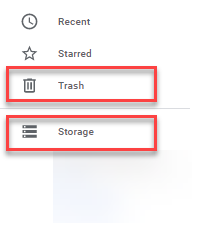
Note that when it comes to storage, files in your Google Drive Trash can take up storage space. If space is needed, delete them forever by right-clicking them and selecting Delete forever.

💎 KloudGem 4:

Generally speaking, Google files do not take up space, but other file formats do. To check what takes up storage space in your Drive, click on Storage.


Google Drive: Trash and Storage

Is there anything else that keeps you scratching your head in Google Drive? Let me know in the Comments below.


Tips for mid-size companies and large enterprises:

Communicate about upcoming changes to the Google Drive Trash -- just in case your users rely on files in Trash to be restorable.

Need help taming your Google tools or training your users? Contact me for a free first consult: https://www.kloudgem.com/get-in-touch/contact  

Do you know someone who could use these KloudGem tips? Feel free to send them this link: https://www.kloudgem.com/follow-resources/newsletter

KloudGem website: https://www.kloudgem.com 

Wednesday, September 30, 2020

Part 9: Recent and Starred - Are You Constantly Looking for Files in Your Google Drive?

Last time, we talked about the Priority section of Google Drive, which is split into: Priority (the Google-determined content) and the Workspaces (the user-determined content) areas. Today's two sections in Google Drive are going to be a bit similar in nature:

The Recent and Starred Sections in Google Drive

Tips for end-users and small businesses:

The function of the Recent section in Google Drive is to surface files that you used most recently. It provides an easy way to find and open a file you have closed only to realize a bit later that you still need it.

The Starred section on the other hand, is almost like a bookmark. When you right-click (PC) or two-finger click (Mac) on a file or folder in Google Drive and select Add to Starred, you are actively bookmarking the item for easy access.


Google Drive - Recent and Starred sections

💎 KloudGem 1:
You can also star a file directly from within the file by clicking on the Star icon next to its name.

💎 KloudGem 2:
You can even search among Starred items from the Search dropdown.

💎 KloudGem 3:
To remove a file/folder from the Starred section, right click/two-finger click on it in Google Drive and select Remove from Starred. Or in the case of a file, simply click the Star icon when you have the file open.

Is there anything else that keeps you scratching your head in Google Drive? Let me know in the Comments below.

Tips for mid-size companies and large enterprises:

Show your users the Quick Access, Priority (Priority+Workspaces), as well as the Recent and Starred sections so they can access their content faster and work more efficiently in Google Drive.

Need help taming your Google tools or training your users? Contact me for a free first consult: https://www.kloudgem.com/get-in-touch/contact  

Do you know someone who could use these KloudGem tips? Feel free to send them this link:

KloudGem website: https://www.kloudgem.com

Wednesday, September 23, 2020

Part 8: Priority Section - Are You Constantly Looking for Files in Your Google Drive?

An area that often confuses users is the Priority section of Google Drive.

The Priority Section in Google Drive

Tips for end-users and small businesses:

The function of the Priority section in Google Drive is two-fold, and they both closely tie into our topic of finding your stuff in Drive:

  • The top part, Priority, shows files that Google has determined you might need to access soon (similar to the Quick Access section that you can turn on or off using the Settings).
  • The bottom part, Workspaces, shows files that you collate into topics yourself. Create a workspace or more (a topic or collection of files that you access frequently) and pull relevant files in (see screenshot). Or you can add files by right-clicking on them in a Drive file list and finding the option to Add to workspace. (Note that it is files, not folders, that you can add to a Workspace.)


💎 KloudGem 1:
You can set Priority to be your default landing area whenever you access Google Drive: see screenshot. You can also set this in Settings.

💎 KloudGem 2:
You can remove files from a Workspace from within the Priority section by hovering your mouse over a file and clicking the 3 dots next to it.

💎 KloudGem 3:
You can remove a Workspace itself by clicking its 3 dots in the Priority section.

💎 KloudGem 4:
Teach Google what you want to see by indicating if a Priority item that's automagically suggested (or a Quick Access item they suggested) is not helpful: right-click (on a PC) or two-finger click (on a Mac) to find the menu item Not a helpful suggestion.

Is there anything else that keeps you scratching your head in Google Drive? Let me know in the Comments below.

Tips for mid-size companies and large enterprises:

Ensure your users know how the Priority section works. If a user unintentionally sets the Priority section as default view, without knowing its purpose, they may have difficulty finding their way around Drive to locate their files and folders.

Need help taming your Google tools or training your users? Contact me for a free first consult: https://www.kloudgem.com/get-in-touch/contact

Do you know someone who could use these KloudGem tips? Feel free to send them this link:
https://www.kloudgem.com/follow-resources/newsletter


KloudGem website: https://www.kloudgem.com

Wednesday, September 16, 2020

Part 7: Grid View/List View - Are You Constantly Looking for Files in Your Google Drive?

Today's tip is about an often-overlooked small button that can be of big help when looking for files in Google Drive.

The Grid View / List View Toggle Button in Google Drive

Tips for end-users and small businesses:

In the top right corner of Google Drive, look for the Grid view / List view button. If Google Drive is showing you a list, you'll see the button offer a Grid view, like below.

If Google Drive is showing you a grid of thumbnail pictures of the contents of the files, you'll see the button offer a List view, like below.

💎 KloudGem 1:

When you are searching for files in Google Drive, and you try to sift through the search results, it's sometimes more helpful to see them in a List view and other times more helpful to see them in a Grid view where you can see a thumbnail image of the contents so you can identify visually what you are looking for. The Grid view is especially helpful when you might have files that bear the same name, and you are confused about which one to keep and which one to delete, or which one to rename.

Is there anything else that keeps you scratching your head in Google Drive? Let me know in the Comments below.

Tips for mid-size companies and large enterprises:

I have seen the Grid view / List view button make a big difference in how fast users can find the content they were looking for in Google Drive. I recommend including this in training for users.

Need help taming your Google tools or training your users? Contact me for a free first consult: https://www.kloudgem.com/get-in-touch/contact

Do you know someone who could use these KloudGem tips? Feel free to send them this link: https://www.kloudgem.com/follow-resources/newsletter

KloudGem website: https://www.kloudgem.com

Wednesday, September 9, 2020

Part 6: Google Drive Settings - Are You Constantly Looking for Files in Your Google Drive?

Do you wish your Google Drive files could be used offline? Do you get annoyed when Google Drive converts your uploaded files into Google files without asking? Get ready to tame your Google Drive.

The Settings in Google Drive

Tips for end-users and small businesses:

If you want to make sure that your Google Drive behaves the way you want it to behave, spend some time in the Settings area under the gear icon.


In the General section, you'll see:

  • What items take up space in your Google Drive. This can be helpful when you are low on space.
💎 KloudGem 1:
Remember that native Google files are not counted against your storage; only other files types are.
Convert uploads settings: If checked, Google Drive will try to convert your uploaded files to Google format. If you don't want that, just uncheck the box. You will still get the chance to convert uploads manually.
  • Language settings
  • Offline working settings: these enable you to create, open, or edit Docs, Sheets, Slides if you happen to be offline. You will be prompted to also install and enable the Google Docs Offline Chrome extension for this to work. For easy access to your extensions, click this icon in Chrome's top bar: Chrome extensions After that, just go to your Google Drive in Chrome and access your files as normal.
💎 KloudGem 2:
Be aware that not all file types can be edited offline. To check which ones are available offline, go to your Google Drive and the icon Ready for offline Ready for offline icon and select Offline preview. Any files that are grayed out will not be editable offline (examples are Microsoft Office files, PDFs, Google Forms, Jamboard files, Google Sites.)
💎 KloudGem 3:
If you need to put non-Google files offline, you can do that with Google Drive Files Stream, which is a utility available to G Suite users.
  • You will be able to adjust the look of your Google Drive in the Density settings. 
  • In the Suggestions area, you can adjust whether you would like to turn on a bit of help from Google: to show files you might need (because you recently accessed it or that Google magically determines you might need to access soon). This is where you can turn on/off Quick Access or make the Priority section your landing area in Google Drive. We will talk more about the Priority section in an upcoming post.
In the Notifications section on the left, you'll see:

  • Options to get emails and /or browser notifications about sharing and other events happening in Google Drive.

In the Manage Apps section on the left, you will see:

  • What Google tools or 3rd-party apps have been connected to your Google Drive, and you can set some basic behavior for the apps, or even remove the apps you no longer need.

Is there anything else that keeps you scratching your head in Google Drive? Let me know in the Comments below.

Tips for mid-size companies and large enterprises:

There is a fair amount of confusion and misconceptions among end-users about Google Drive. Two of the most common ones are the offline functionality and the conversion of uploaded files. Make sure that your users have a clear picture about what these behaviors look like in Google Drive and what controls they have at their disposal to change the behaviors. In a large collaborative environment also share the pros and cons of putting files offline.

Need help taming your Google tools or training your users? Contact me for a free first consult: https://www.kloudgem.com/get-in-touch/contact  

Do you know someone who could use these KloudGem tips? Feel free to send them this link:
https://www.kloudgem.com/follow-resources/newsletter

KloudGem website: https://www.KloudGem.com

Tuesday, September 1, 2020

Part 5: "i" icon - Are You Constantly Looking for Files in Your Google Drive?

Ready for some "detective work?"

The "i" icon in Google Drive


Tips for end-users and small businesses:

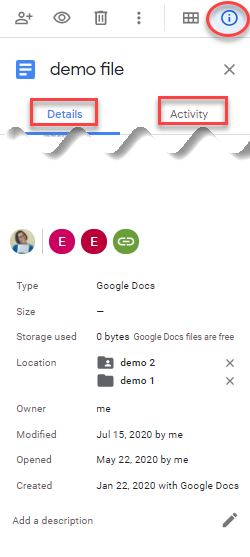
Let's say that you have been able to search for and zero in on the file you were looking for in Google Drive, but you don't know exactly which folder it lives in. You also want to know about the high-level history of the file: when it was created, when edited, and by whom. For this, the "i" icon will be your best friend. Click it and see some more details about the file's history:

Google Drive - "i" icon side panel

Clicking the "i" icon will activate a right-side panel that has 2 tabs:

The Details tab:
The Details tab will give you that high-level information about where the file lives, who owns it (in My Drive), when it was created, when it was modified, by whom, and generally who it is shared with. You can also see additional searchable descriptions that may have been added to the file.

💎 KloudGem 1:
You can click a folder name listed in the Details tab of the "i" icon panel and be instantly taken into the folder.

The Activity tab:
Click over to the Activity tab to get more granularity on who has changed permissions on the file and who has edited it.

💎 KloudGem 2:
If you need to go even more granular in your detective work, you could also check a file's Version history from the File menu inside the file -- for that, you need to open the file.

❓ Is there anything else that keeps you scratching your head in Google Drive? Let me know in the Comments below.

Tips for mid-size companies and large enterprises:

Training your users on the less known or less obvious features in Google Drive will significantly improve their ability to be self-sufficient and reduce their need to reach out to your help desk. 

❓ Need help taming your Google tools or training your users? Contact me for a free first consult:https://www.kloudgem.com/get-in-touch/contact 

Do you know someone who could use these KloudGem tips? Feel free to send them this link: https://www.kloudgem.com/follow-resources/newsletter 

KloudGem website: https://www.KloudGem.com

Wednesday, August 26, 2020

Part 4: Search - Are You Constantly Looking for Files in Your Google Drive?

Over the last few weeks we’ve talked through how the main sections of Google Drive behave. Now it's time to talk about Google Drive's power feature: Search!

The Search functionality in Google Drive


Tips for end-users and small businesses:

I am going to assume that your Google Drive is all neatly organized :), but just on the off chance that you still have to search for files, don't just type something into the search box and sift through a barrage of search results. Be intentional about your search. 

What do I mean by that? Well:
  1. You know how you remember little bits of conversations that you have with your friends or colleagues, some quirky phrases that you or they said? Try to focus on those little tidbits and phrases in files: those are gold when it comes to searching. They are specific enough so Google Drive doesn't come up with a ton of files in your search result list.
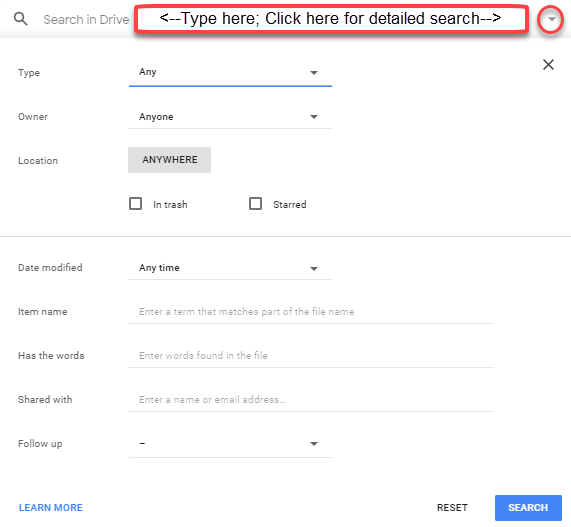
  2. Additionally, narrow down your search. Click the small triangle on the right side of the search bar at the top in your Google Drive. A whole new world will open up for you. Think about whether you remember the file type you are looking for: was it a Sheet, a Doc, a Slide? Something else?
Let's take a closer look:

Google Drive - Search dropdown
  1. You can actually start by typing into the search box, and then dropping down the arrow. The search phrase you typed in -- you'll notice -- by default will appear in the Has the words section, meaning, Google searches both in the items' names and in their content.
  2. If your search phrase is very generic, you are likely to get a lot of results. Narrow them down by Type: Document, Spreadsheet, Presentation, PDF, video file, photo, etc. or even a Folder or a Shortcut.
  3. Still too many results? Narrow further. Drop down the arrow again and refine some more. Do you remember the owner? Was it you? Someone else? Try the Owner field. (Note though that when you are searching for content that might live in a Shared drive, you won't find it by owner; instead, type creator:emailaddress in the search bar.)
  4. If you want, you can narrow the location to specific folders in the Location section.
  5. Do you think you might have put that content you were looking for into the Trash? Try checking the In Trash checkbox. 
  6. Did you star it perhaps? Check Starred.
  7. Do you have an approximate idea about when the file may have been last modified, narrow down your search in the Date modified field.
  8. Next up is the Item name field. If you know the content's name, this can be a good bet.
  9. We already talked about Has the words being the broadest of searches.
  10. If you know specific people an item has been shared with try the Shared with section.

💎 KloudGem 1:
My all-time favorite productivity search is the Follow-up section in this dropdown. If you have received suggestions on files or have been assigned action items, this will help you search for all the ones you need to act on. Easy-peasy! This section is personalized to you.

💎 KloudGem 2:
As you search, pay attention to the black popup bars in the lower left corner for anything you placed in the Trash. Those pop-ups disappear quickly; if you miss them and think your item might be in the Trash, you will need to re-trigger them by performing the search again.

💎 KloudGem 3:
Focus on the details: try to remember the nuances, the things that make the item you’re searching for different, and use those for searching.

💎 KloudGem 4:
Ready to take searching up a notch? Try search operators in the Advanced section below.
These are short words you can type into the search box, usually followed by a colon, without a space between the operator and the search term, or they may be symbols. Personally, I am obsessed with search operators: they often work across Google tools and they are like hidden gems, making it easier and faster for you to find things.

Tips for mid-size companies and large enterprises:

Searching effectively can make the difference between your users loving or hating their Google work environment. Invest in training them on search best practices in Google Drive, and in other Google tools. Their productivity will thank you for it.

❓ Is there anything else that keeps you scratching your head in Google Drive? Let me know in the Comments below.

Need help taming your Google tools or training your users? Contact me for a free first consult: https://www.kloudgem.com/get-in-touch/contact 

Do you know someone who could use these KloudGem tips? Feel free to send them this link: https://www.kloudgem.com/follow-resources/newsletter 

KloudGem website: https://www.KloudGem.com

Wednesday, August 19, 2020

Part 3: Shared drives section - Are You Constantly Looking for Files in Your Google Drive?

This time, in this multi-part series that is designed to help you orient yourself and/or your users in Google Drive, we are going to talk about Shared drives. (Please note that at this time, the Shared drives feature is only available in the G Suite Business, Enterprise, Education, Enterprise for Education, Nonprofits, and Essentials editions. The feature is not available in the G Suite Basic edition or in the free Gmail-based Google Drive. However, G Suite Basic or Gmail.com users can still be invited to collaborate in a Shared drive environment.)

The Shared drives section of Google Drive (available in certain G Suite editions)


Tips for end-users and small businesses:

Last time we talked about how the My Drive section of Google Drive works, and we said it was highly customizable to and by each user. My Drive lets me organize files and folders the way I want, and you the way you want. This ensures flexibility, but in a collaborative, team environment, it can result in some team members seeing a different folder structure than others, because they may have chosen to organize their content differently.

Shared drives in Google Drive

Shared drives take the guesswork out of the folder structure issue, as every member will see the same structure (and only members with certain access levels can add members or move content within a Shared drive). 

Access levels are set as: 
  • Manager (highest level; this role is like file Owner in My Drive, the difference being that multiple people can be assigned this Manager role in a Shared drive; people in this role have full rights on the Shared drive including membership management) 
  • Content manager (people in this role can organize folders and content and have edit rights)
  • Contributor (people in this role have edit rights, but there is a limit on their ability to organize content in a Shared drive; they can create and upload files)
  • Commenter 
  • Viewer
Did you know? Shared drives used to be called Team Drives.

Is there anything else that keeps you scratching your head in Google Drive? Let me know in the Comments below.


Tips for mid-size companies and large enterprises:

Shared drives are best used by teams as a file storage and collaboration area in Google Drive. Files in a Shared drive are effectively owned by its members, and even if some members leave the organization, their Shared drive files will not be deleted with the user's account, because the other members will continue to own them and keep access to them.

Note though that by virtue of someone being a member of a Shared drive, they will be able to see all the files and folders in that Shared drive.

Need help taming your Google tools or training your users? Contact me for a free first consult: https://www.kloudgem.com/get-in-touch/contact 

Do you know someone who could use these KloudGem tips? Feel free to send them this link: https://www.kloudgem.com/follow-resources/newsletter 

KloudGem website: https://www.KloudGem.com