<< BACK TO KLOUDGEM.COM HOME

Wednesday, October 14, 2020

"What's in a name?" - Google Workspace

This week we are discussing a new pivoting point in the history of G Suite, namely its rebranding to Google Workspace last Tuesday (October 6, 2020).

💎 KloudGem 1:

The editions currently available for G Suite will be redistributed into more fine-grained tiers. Just to give an example, you will be able to record video meetings and screenshares in a more economical pricing tier.

💎 KloudGem 2:

Google is asking G Suite accounts' primary admins to look out for an email (to be sent before October 16, 2020) that will outline your transition options to one of the above plans.

From a practical perspective, in the short term, this change will mean new tiers of editions:

Google Workspace Business Starter

Google Workspace Business Standard

Google Workspace Business Plus

Google Workspace Enterprise 


(https://workspace.google.com/pricing.html)

Google Workspace Is the New G Suite

Tips for end-users and small businesses:

Google aims to even better integrate its suite of productivity and communication tools, making the transition from one tool to another as seamless as possible. They are promising Google Workspace will be more than yet another name change for G Suite; it will be a true transformation.

💎 KloudGem 3:

The transformation itself is unlikely to be a one-day-to-another reveal, but a gradual rollout of new features, some of which we have already started seeing, for example with Gmail, especially in the mobile apps, where it's now easier to switch between email, chat/chat rooms, and video conferencing.

What do you think? How do you see these changes impacting your business IT? Leave me a note in the Comments; I am curious to know.


Tips for mid-size companies and large enterprises:

Since the functionalities and editions currently available for G Suite will be redistributed into the above new tiers, you will get a chance to reevaluate what works best for your business needs and how you envision your business adopting them. With the new, more integrated toolset, take this also as an opportunity to reshape the way people in your organization work, and highlight the agility of communicating within the actual file you are creating or working in -- whether synchronously or asynchronously.

What will these new features enable your organization to do?

Need help taming your Google tools or training your users? Contact me for a free first consult: https://www.kloudgem.com/get-in-touch/contact  

Do you know someone who could use these KloudGem tips? Feel free to send them this link: https://www.kloudgem.com/follow-resources/newsletter

KloudGem website: https://www.kloudgem.com

Wednesday, October 7, 2020

Part 10: Mind the Trash - Are You Constantly Looking for Files in Your Google Drive?

Changes are coming to how Google Drive is handling contents in My Drive's Trash:

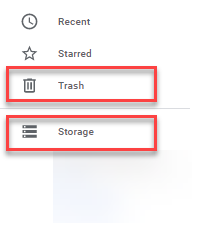
The Trash Section in Google Drive

Tips for end-users and small businesses:

Both for Gmail and G Suite users, starting October 13, 2020, files that have been sitting in the My Drive Trash for 30 days, will get deleted. This is in line with how Shared drives (G Suite Business and up) and Gmail are handling deleted items.

💎 KloudGem 1:

You can restore items from the Trash by right-clicking them and selecting Restore. The content will go back to its original location once restored.

💎 KloudGem 2:

When you do searches in Drive, pay attention to small popup notifications in the lower left corner of your Google Drive. They may disappear quickly! Those are notifications that indicate that you may have content that matches your search, but the items are in the Trash. If you need to, re-do the search and watch for the notifications.

💎 KloudGem 3:

Note that when it comes to storage, files in your Google Drive Trash can take up storage space. If space is needed, delete them forever by right-clicking them and selecting Delete forever.

💎 KloudGem 4:

Generally speaking, Google files do not take up space, but other file formats do. To check what takes up storage space in your Drive, click on Storage.


Google Drive: Trash and Storage

Is there anything else that keeps you scratching your head in Google Drive? Let me know in the Comments below.


Tips for mid-size companies and large enterprises:

Communicate about upcoming changes to the Google Drive Trash -- just in case your users rely on files in Trash to be restorable.

Need help taming your Google tools or training your users? Contact me for a free first consult: https://www.kloudgem.com/get-in-touch/contact  

Do you know someone who could use these KloudGem tips? Feel free to send them this link: https://www.kloudgem.com/follow-resources/newsletter

KloudGem website: https://www.kloudgem.com 
Wednesday, September 30, 2020

Part 9: Recent and Starred - Are You Constantly Looking for Files in Your Google Drive?

Last time, we talked about the Priority section of Google Drive, which is split into: Priority (the Google-determined content) and the Workspaces (the user-determined content) areas. Today's two sections in Google Drive are going to be a bit similar in nature:

The Recent and Starred Sections in Google Drive

Tips for end-users and small businesses:

The function of the Recent section in Google Drive is to surface files that you used most recently. It provides an easy way to find and open a file you have closed only to realize a bit later that you still need it.

The Starred section on the other hand, is almost like a bookmark. When you right-click (PC) or two-finger click (Mac) on a file or folder in Google Drive and select Add to Starred, you are actively bookmarking the item for easy access.


Google Drive - Recent and Starred sections

💎 KloudGem 1:
You can also star a file directly from within the file by clicking on the Star icon next to its name.

💎 KloudGem 2:
You can even search among Starred items from the Search dropdown.

💎 KloudGem 3:
To remove a file/folder from the Starred section, right click/two-finger click on it in Google Drive and select Remove from Starred. Or in the case of a file, simply click the Star icon when you have the file open.

Is there anything else that keeps you scratching your head in Google Drive? Let me know in the Comments below.

Tips for mid-size companies and large enterprises:

Show your users the Quick Access, Priority (Priority+Workspaces), as well as the Recent and Starred sections so they can access their content faster and work more efficiently in Google Drive.

Need help taming your Google tools or training your users? Contact me for a free first consult: https://www.kloudgem.com/get-in-touch/contact  

Do you know someone who could use these KloudGem tips? Feel free to send them this link:

KloudGem website: https://www.kloudgem.com

Wednesday, September 23, 2020

Part 8: Priority Section - Are You Constantly Looking for Files in Your Google Drive?

An area that often confuses users is the Priority section of Google Drive.

The Priority Section in Google Drive

Tips for end-users and small businesses:

The function of the Priority section in Google Drive is two-fold, and they both closely tie into our topic of finding your stuff in Drive:

  • The top part, Priority, shows files that Google has determined you might need to access soon (similar to the Quick Access section that you can turn on or off using the Settings).
  • The bottom part, Workspaces, shows files that you collate into topics yourself. Create a workspace or more (a topic or collection of files that you access frequently) and pull relevant files in (see screenshot). Or you can add files by right-clicking on them in a Drive file list and finding the option to Add to workspace. (Note that it is files, not folders, that you can add to a Workspace.)


💎 KloudGem 1:
You can set Priority to be your default landing area whenever you access Google Drive: see screenshot. You can also set this in Settings.

💎 KloudGem 2:
You can remove files from a Workspace from within the Priority section by hovering your mouse over a file and clicking the 3 dots next to it.

💎 KloudGem 3:
You can remove a Workspace itself by clicking its 3 dots in the Priority section.

💎 KloudGem 4:
Teach Google what you want to see by indicating if a Priority item that's automagically suggested (or a Quick Access item they suggested) is not helpful: right-click (on a PC) or two-finger click (on a Mac) to find the menu item Not a helpful suggestion.

Is there anything else that keeps you scratching your head in Google Drive? Let me know in the Comments below.

Tips for mid-size companies and large enterprises:

Ensure your users know how the Priority section works. If a user unintentionally sets the Priority section as default view, without knowing its purpose, they may have difficulty finding their way around Drive to locate their files and folders.

Need help taming your Google tools or training your users? Contact me for a free first consult: https://www.kloudgem.com/get-in-touch/contact

Do you know someone who could use these KloudGem tips? Feel free to send them this link:
https://www.kloudgem.com/follow-resources/newsletter


KloudGem website: https://www.kloudgem.com

Wednesday, September 16, 2020

Part 7: Grid View/List View - Are You Constantly Looking for Files in Your Google Drive?

Today's tip is about an often-overlooked small button that can be of big help when looking for files in Google Drive.

The Grid View / List View Toggle Button in Google Drive

Tips for end-users and small businesses:

In the top right corner of Google Drive, look for the Grid view / List view button. If Google Drive is showing you a list, you'll see the button offer a Grid view, like below.

If Google Drive is showing you a grid of thumbnail pictures of the contents of the files, you'll see the button offer a List view, like below.

💎 KloudGem 1:

When you are searching for files in Google Drive, and you try to sift through the search results, it's sometimes more helpful to see them in a List view and other times more helpful to see them in a Grid view where you can see a thumbnail image of the contents so you can identify visually what you are looking for. The Grid view is especially helpful when you might have files that bear the same name, and you are confused about which one to keep and which one to delete, or which one to rename.

Is there anything else that keeps you scratching your head in Google Drive? Let me know in the Comments below.

Tips for mid-size companies and large enterprises:

I have seen the Grid view / List view button make a big difference in how fast users can find the content they were looking for in Google Drive. I recommend including this in training for users.

Need help taming your Google tools or training your users? Contact me for a free first consult: https://www.kloudgem.com/get-in-touch/contact

Do you know someone who could use these KloudGem tips? Feel free to send them this link: https://www.kloudgem.com/follow-resources/newsletter

KloudGem website: https://www.kloudgem.com

Wednesday, September 9, 2020

Part 6: Google Drive Settings - Are You Constantly Looking for Files in Your Google Drive?

Do you wish your Google Drive files could be used offline? Do you get annoyed when Google Drive converts your uploaded files into Google files without asking? Get ready to tame your Google Drive.

The Settings in Google Drive

Tips for end-users and small businesses:

If you want to make sure that your Google Drive behaves the way you want it to behave, spend some time in the Settings area under the gear icon.


In the General section, you'll see:

  • What items take up space in your Google Drive. This can be helpful when you are low on space.
💎 KloudGem 1:
Remember that native Google files are not counted against your storage; only other files types are.
Convert uploads settings: If checked, Google Drive will try to convert your uploaded files to Google format. If you don't want that, just uncheck the box. You will still get the chance to convert uploads manually.
  • Language settings
  • Offline working settings: these enable you to create, open, or edit Docs, Sheets, Slides if you happen to be offline. You will be prompted to also install and enable the Google Docs Offline Chrome extension for this to work. For easy access to your extensions, click this icon in Chrome's top bar: Chrome extensions After that, just go to your Google Drive in Chrome and access your files as normal.
💎 KloudGem 2:
Be aware that not all file types can be edited offline. To check which ones are available offline, go to your Google Drive and the icon Ready for offline Ready for offline icon and select Offline preview. Any files that are grayed out will not be editable offline (examples are Microsoft Office files, PDFs, Google Forms, Jamboard files, Google Sites.)
💎 KloudGem 3:
If you need to put non-Google files offline, you can do that with Google Drive Files Stream, which is a utility available to G Suite users.
  • You will be able to adjust the look of your Google Drive in the Density settings. 
  • In the Suggestions area, you can adjust whether you would like to turn on a bit of help from Google: to show files you might need (because you recently accessed it or that Google magically determines you might need to access soon). This is where you can turn on/off Quick Access or make the Priority section your landing area in Google Drive. We will talk more about the Priority section in an upcoming post.
In the Notifications section on the left, you'll see:

  • Options to get emails and /or browser notifications about sharing and other events happening in Google Drive.

In the Manage Apps section on the left, you will see:

  • What Google tools or 3rd-party apps have been connected to your Google Drive, and you can set some basic behavior for the apps, or even remove the apps you no longer need.

Is there anything else that keeps you scratching your head in Google Drive? Let me know in the Comments below.

Tips for mid-size companies and large enterprises:

There is a fair amount of confusion and misconceptions among end-users about Google Drive. Two of the most common ones are the offline functionality and the conversion of uploaded files. Make sure that your users have a clear picture about what these behaviors look like in Google Drive and what controls they have at their disposal to change the behaviors. In a large collaborative environment also share the pros and cons of putting files offline.

Need help taming your Google tools or training your users? Contact me for a free first consult: https://www.kloudgem.com/get-in-touch/contact  

Do you know someone who could use these KloudGem tips? Feel free to send them this link:
https://www.kloudgem.com/follow-resources/newsletter

KloudGem website: https://www.KloudGem.com

Tuesday, September 1, 2020

Part 5: "i" icon - Are You Constantly Looking for Files in Your Google Drive?

Ready for some "detective work?"

The "i" icon in Google Drive


Tips for end-users and small businesses:

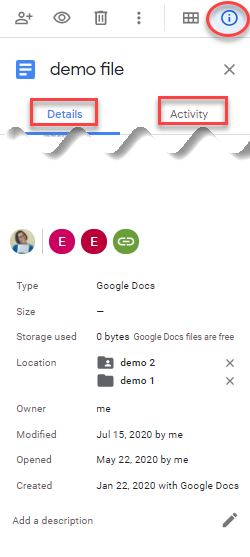
Let's say that you have been able to search for and zero in on the file you were looking for in Google Drive, but you don't know exactly which folder it lives in. You also want to know about the high-level history of the file: when it was created, when edited, and by whom. For this, the "i" icon will be your best friend. Click it and see some more details about the file's history:

Google Drive - "i" icon side panel

Clicking the "i" icon will activate a right-side panel that has 2 tabs:

The Details tab:
The Details tab will give you that high-level information about where the file lives, who owns it (in My Drive), when it was created, when it was modified, by whom, and generally who it is shared with. You can also see additional searchable descriptions that may have been added to the file.

💎 KloudGem 1:
You can click a folder name listed in the Details tab of the "i" icon panel and be instantly taken into the folder.

The Activity tab:
Click over to the Activity tab to get more granularity on who has changed permissions on the file and who has edited it.

💎 KloudGem 2:
If you need to go even more granular in your detective work, you could also check a file's Version history from the File menu inside the file -- for that, you need to open the file.

❓ Is there anything else that keeps you scratching your head in Google Drive? Let me know in the Comments below.

Tips for mid-size companies and large enterprises:

Training your users on the less known or less obvious features in Google Drive will significantly improve their ability to be self-sufficient and reduce their need to reach out to your help desk. 

❓ Need help taming your Google tools or training your users? Contact me for a free first consult:https://www.kloudgem.com/get-in-touch/contact 

Do you know someone who could use these KloudGem tips? Feel free to send them this link: https://www.kloudgem.com/follow-resources/newsletter 

KloudGem website: https://www.KloudGem.com