<< BACK TO KLOUDGEM.COM HOME

Wednesday, October 28, 2020

Easier Sharing Files to Clients - Google Workspace

 A long-awaited feature was rolled out not too long ago in Google Workspace: sharing files with non-Google accounts, aka. Visitor sharing. What does this mean? It means that if this feature is enabled for your Google Workspace domain, you can directly share to -- and most importantly -- collaborate with non-Google accounts on files in Google Drive

Tips for end-users and small businesses:

Previously, when you wanted to share with non-Google/non-Gmail accounts, you had to choose between:

A) sharing with a link (which was viewable or editable by anyone to whom the link was sent or forwarded) 

or 

B) having the recipient be prompted to create a Google Account. 

However, when you work with clients, do you think they want your shared collaboration to be less secure (A) or be bothered to create a Google Account (B)? Nope.

And that is why Visitor sharing is a huge step in the direction of enabling powerful collaboration not just internally at a business, but also with clients; it has the potential to really allow businesses to work more seamlessly and grow.


Google Workspace - Visitor sharing


💎 KloudGem 1:

Visitor sharing will prompt your file's recipient to enter a PIN code. This code is automatically generated and sent in a separate email to their email address.

💎 KloudGem 2:

Visitors will be asked to get and re-enter a new PIN after 7 days.

💎 KloudGem 3:

Visitor sharing does have limitations. Currently, you can only allow Visitor sharing for these kinds of Google Drive items:

Folders, Google Docs, Sheets, Slides, Sites, Images, PDFs, and Microsoft Office files.

💎 KloudGem 4:

Visitor sharing is a Google Workspace (G Suite) feature; @gmail.com accounts don't have secure PIN sharing.

❓ How do you see this changing your client collaboration?


Tips for mid-size companies and large enterprises:

Has your organization felt like internal collaboration is smooth as butter, but external collaboration is very bumpy?  Visitor sharing will change that. Suddenly, there is no longer a need to jump through hoops to create a Google Account if the external collaborator does not already have one. It will eliminate the back-and-forth and time-consuming account setup.

What will Visitor Sharing enable your organization to do?


Need help taming your Google tools or training your users? Contact me for a free first consult: https://www.kloudgem.com/get-in-touch/contact  

Do you know someone who could use these KloudGem tips? Feel free to send them this link: https://www.kloudgem.com/follow-resources/newsletter

KloudGem website: https://www.kloudgem.com

Wednesday, October 21, 2020

What's your biggest challenge with your IT/Google tools?

This week's post is a bit outside the regular programming. 

Question mark

You are probably here because you know that helping businesses figure out their IT infrastructure and ensuring that they use their tools confidently is near and dear to my heart. I strongly believe that IT shouldn’t be pictured as some complicated, mystical thing that only the "techies" can understand or have access to.

Every day, I see businesses big and small struggling with their IT. They might be having trouble figuring out 

  • what tools are must-haves, or 
  • how to use what they have to the fullest extent, or 
  • getting their users to feel comfortable with tools.

What are YOUR  IT struggles?

💎 I want these posts to respond to your needs, so feel free to get out your virtual pen and paper and leave me a comment with your biggest challenge with IT and Google tools.

Thank you, and I look forward to tackling some of these challenges in upcoming posts!

All best,

Gabriella


Need help taming your Google tools or training your users? Contact me for a free first consult: https://www.kloudgem.com/get-in-touch/contact  

Do you know someone who could use these KloudGem tips? Feel free to send them this link: https://www.kloudgem.com/follow-resources/newsletter

KloudGem website: https://www.kloudgem.com

Wednesday, October 14, 2020

"What's in a name?" - Google Workspace

This week we are discussing a new pivoting point in the history of G Suite, namely its rebranding to Google Workspace last Tuesday (October 6, 2020).

💎 KloudGem 1:

The editions currently available for G Suite will be redistributed into more fine-grained tiers. Just to give an example, you will be able to record video meetings and screenshares in a more economical pricing tier.

💎 KloudGem 2:

Google is asking G Suite accounts' primary admins to look out for an email (to be sent before October 16, 2020) that will outline your transition options to one of the above plans.

From a practical perspective, in the short term, this change will mean new tiers of editions:

Google Workspace Business Starter

Google Workspace Business Standard

Google Workspace Business Plus

Google Workspace Enterprise 


(https://workspace.google.com/pricing.html)

Google Workspace Is the New G Suite

Tips for end-users and small businesses:

Google aims to even better integrate its suite of productivity and communication tools, making the transition from one tool to another as seamless as possible. They are promising Google Workspace will be more than yet another name change for G Suite; it will be a true transformation.

💎 KloudGem 3:

The transformation itself is unlikely to be a one-day-to-another reveal, but a gradual rollout of new features, some of which we have already started seeing, for example with Gmail, especially in the mobile apps, where it's now easier to switch between email, chat/chat rooms, and video conferencing.

What do you think? How do you see these changes impacting your business IT? Leave me a note in the Comments; I am curious to know.


Tips for mid-size companies and large enterprises:

Since the functionalities and editions currently available for G Suite will be redistributed into the above new tiers, you will get a chance to reevaluate what works best for your business needs and how you envision your business adopting them. With the new, more integrated toolset, take this also as an opportunity to reshape the way people in your organization work, and highlight the agility of communicating within the actual file you are creating or working in -- whether synchronously or asynchronously.

What will these new features enable your organization to do?

Need help taming your Google tools or training your users? Contact me for a free first consult: https://www.kloudgem.com/get-in-touch/contact  

Do you know someone who could use these KloudGem tips? Feel free to send them this link: https://www.kloudgem.com/follow-resources/newsletter

KloudGem website: https://www.kloudgem.com

Wednesday, October 7, 2020

Part 10: Mind the Trash - Are You Constantly Looking for Files in Your Google Drive?

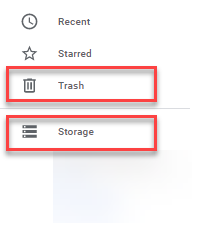
Changes are coming to how Google Drive is handling contents in My Drive's Trash:

The Trash Section in Google Drive

Tips for end-users and small businesses:

Both for Gmail and G Suite users, starting October 13, 2020, files that have been sitting in the My Drive Trash for 30 days, will get deleted. This is in line with how Shared drives (G Suite Business and up) and Gmail are handling deleted items.

💎 KloudGem 1:

You can restore items from the Trash by right-clicking them and selecting Restore. The content will go back to its original location once restored.

💎 KloudGem 2:

When you do searches in Drive, pay attention to small popup notifications in the lower left corner of your Google Drive. They may disappear quickly! Those are notifications that indicate that you may have content that matches your search, but the items are in the Trash. If you need to, re-do the search and watch for the notifications.

💎 KloudGem 3:

Note that when it comes to storage, files in your Google Drive Trash can take up storage space. If space is needed, delete them forever by right-clicking them and selecting Delete forever.

💎 KloudGem 4:

Generally speaking, Google files do not take up space, but other file formats do. To check what takes up storage space in your Drive, click on Storage.


Google Drive: Trash and Storage

Is there anything else that keeps you scratching your head in Google Drive? Let me know in the Comments below.


Tips for mid-size companies and large enterprises:

Communicate about upcoming changes to the Google Drive Trash -- just in case your users rely on files in Trash to be restorable.

Need help taming your Google tools or training your users? Contact me for a free first consult: https://www.kloudgem.com/get-in-touch/contact  

Do you know someone who could use these KloudGem tips? Feel free to send them this link: https://www.kloudgem.com/follow-resources/newsletter

KloudGem website: https://www.kloudgem.com 
Wednesday, September 30, 2020

Part 9: Recent and Starred - Are You Constantly Looking for Files in Your Google Drive?

Last time, we talked about the Priority section of Google Drive, which is split into: Priority (the Google-determined content) and the Workspaces (the user-determined content) areas. Today's two sections in Google Drive are going to be a bit similar in nature:

The Recent and Starred Sections in Google Drive

Tips for end-users and small businesses:

The function of the Recent section in Google Drive is to surface files that you used most recently. It provides an easy way to find and open a file you have closed only to realize a bit later that you still need it.

The Starred section on the other hand, is almost like a bookmark. When you right-click (PC) or two-finger click (Mac) on a file or folder in Google Drive and select Add to Starred, you are actively bookmarking the item for easy access.


Google Drive - Recent and Starred sections

💎 KloudGem 1:
You can also star a file directly from within the file by clicking on the Star icon next to its name.

💎 KloudGem 2:
You can even search among Starred items from the Search dropdown.

💎 KloudGem 3:
To remove a file/folder from the Starred section, right click/two-finger click on it in Google Drive and select Remove from Starred. Or in the case of a file, simply click the Star icon when you have the file open.

Is there anything else that keeps you scratching your head in Google Drive? Let me know in the Comments below.

Tips for mid-size companies and large enterprises:

Show your users the Quick Access, Priority (Priority+Workspaces), as well as the Recent and Starred sections so they can access their content faster and work more efficiently in Google Drive.

Need help taming your Google tools or training your users? Contact me for a free first consult: https://www.kloudgem.com/get-in-touch/contact  

Do you know someone who could use these KloudGem tips? Feel free to send them this link:

KloudGem website: https://www.kloudgem.com

Wednesday, September 23, 2020

Part 8: Priority Section - Are You Constantly Looking for Files in Your Google Drive?

An area that often confuses users is the Priority section of Google Drive.

The Priority Section in Google Drive

Tips for end-users and small businesses:

The function of the Priority section in Google Drive is two-fold, and they both closely tie into our topic of finding your stuff in Drive:

  • The top part, Priority, shows files that Google has determined you might need to access soon (similar to the Quick Access section that you can turn on or off using the Settings).
  • The bottom part, Workspaces, shows files that you collate into topics yourself. Create a workspace or more (a topic or collection of files that you access frequently) and pull relevant files in (see screenshot). Or you can add files by right-clicking on them in a Drive file list and finding the option to Add to workspace. (Note that it is files, not folders, that you can add to a Workspace.)


💎 KloudGem 1:
You can set Priority to be your default landing area whenever you access Google Drive: see screenshot. You can also set this in Settings.

💎 KloudGem 2:
You can remove files from a Workspace from within the Priority section by hovering your mouse over a file and clicking the 3 dots next to it.

💎 KloudGem 3:
You can remove a Workspace itself by clicking its 3 dots in the Priority section.

💎 KloudGem 4:
Teach Google what you want to see by indicating if a Priority item that's automagically suggested (or a Quick Access item they suggested) is not helpful: right-click (on a PC) or two-finger click (on a Mac) to find the menu item Not a helpful suggestion.

Is there anything else that keeps you scratching your head in Google Drive? Let me know in the Comments below.

Tips for mid-size companies and large enterprises:

Ensure your users know how the Priority section works. If a user unintentionally sets the Priority section as default view, without knowing its purpose, they may have difficulty finding their way around Drive to locate their files and folders.

Need help taming your Google tools or training your users? Contact me for a free first consult: https://www.kloudgem.com/get-in-touch/contact

Do you know someone who could use these KloudGem tips? Feel free to send them this link:
https://www.kloudgem.com/follow-resources/newsletter


KloudGem website: https://www.kloudgem.com

Wednesday, September 16, 2020

Part 7: Grid View/List View - Are You Constantly Looking for Files in Your Google Drive?

Today's tip is about an often-overlooked small button that can be of big help when looking for files in Google Drive.

The Grid View / List View Toggle Button in Google Drive

Tips for end-users and small businesses:

In the top right corner of Google Drive, look for the Grid view / List view button. If Google Drive is showing you a list, you'll see the button offer a Grid view, like below.

If Google Drive is showing you a grid of thumbnail pictures of the contents of the files, you'll see the button offer a List view, like below.

💎 KloudGem 1:

When you are searching for files in Google Drive, and you try to sift through the search results, it's sometimes more helpful to see them in a List view and other times more helpful to see them in a Grid view where you can see a thumbnail image of the contents so you can identify visually what you are looking for. The Grid view is especially helpful when you might have files that bear the same name, and you are confused about which one to keep and which one to delete, or which one to rename.

Is there anything else that keeps you scratching your head in Google Drive? Let me know in the Comments below.

Tips for mid-size companies and large enterprises:

I have seen the Grid view / List view button make a big difference in how fast users can find the content they were looking for in Google Drive. I recommend including this in training for users.

Need help taming your Google tools or training your users? Contact me for a free first consult: https://www.kloudgem.com/get-in-touch/contact

Do you know someone who could use these KloudGem tips? Feel free to send them this link: https://www.kloudgem.com/follow-resources/newsletter

KloudGem website: https://www.kloudgem.com