<< BACK TO KLOUDGEM.COM HOME

Saturday, February 29, 2020

How to Use More Than One Google Account and Never Get Them Tangled Up

If you work with at least two Google Accounts (say one @gmail.com account and one G Suite account on your domain, or even two @gmail.com accounts), you know that while you are signed into one, it’s not so straightforward to sign into the other one from the same browser. It’s easy to get the two or more accounts all tangled up in such a way that, for example, when you expect to reach your second account’s Google Drive, you somehow wind up in the first ones’, eventually losing track of where you created which file.

The good news is: this doesn’t have to be this way; you have options!

DO:
You can use a different kind of browser for each account.
or
You can use a private incognito window to access your second account.
or
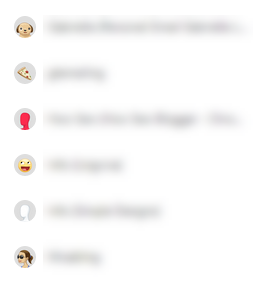
You can use separate Chrome Profiles -- the easiest and most convenient solution.
On a PC
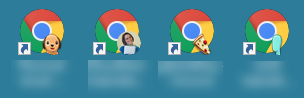
On a Mac

DON’T:
Don’t add another account under your signed-in Google Account. This increases your chance for getting your Google Accounts confused.

Are there any areas in Google tools that you have questions about? Share them in the Comments below.

Are you interested in tips about Google tools? KloudGem Newsletter subscribers get detailed tips and resources right in their inboxes. Sign up here for some KloudGems!

Do you know someone who could use these KloudGem tips? Feel free to send them this link:
https://www.kloudgem.com/follow-resources/newsletter

KloudGem website: www.KloudGem.com

Tuesday, January 28, 2020

Find the URLs of Non-Google Files in Google Drive

If you work in Google Drive on a regular basis, you know that finding the URLs of Google files is as easy as copying them out from your browser’s address bar.


But what about non-Google files, like PDFs, image files, or Microsoft files that Google Drive shows a preview of? When you go up to the address bar for these, many times the URL is just that of the containing folder.


However, the files in the folder still have specific URLs; they are more hidden, but you can still find them!


Hint: You don’t have to open up access to the file with Get shareable link to find the URL. (As discussed in an earlier post, Get shareable link has ramifications for access control to your files.)


You can actually find a non-Google file’s direct URL in a couple of different ways:


A. From the Sharing window
  1. Go to Google Drive and locate your file.
  2. Right-click on the file’s name.
  3. If you right-clicked, click Share from the menu that opened.
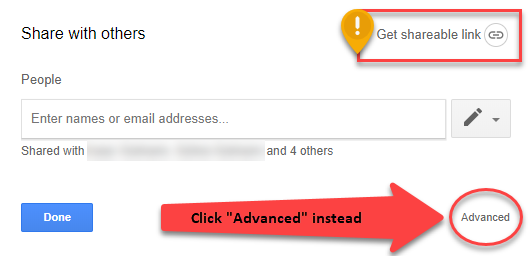
  4. Click Advanced.
  5. The file’s direct link is the one highlighted in blue. You can copy-paste it.


ALTERNATIVELY


B. From the Open in new window option in file preview
  1. Go to Google Drive and locate your file.
  2. Double-click on the file’s name to open its preview.
  3. From the 3 dots in the top right corner,
  4. Click Open in new window OR 
  5. Now you will see that the browser’s address bar is displaying the direct URL of the file. You can copy-paste it from the address bar.


Are there any areas in Google tools that you have questions about? Share them in the Comments below.


Are you interested in tips about Google tools? KloudGem Newsletter subscribers get detailed tips and resources right in their inboxes. Sign up here for some KloudGems!


Do you know someone who could use these KloudGem tips? Feel free to send them this link:

KloudGem website: www.KloudGem.com

Wednesday, December 18, 2019

Use Hangouts Meet to Build Rapport!

In the holiday spirit, this month’s KloudGem is all about using technology for building rapport with colleagues, clients, business partners.

December is the time for sending good wishes for holidays and for the new year, but building out business relationships takes more than that one card or email. A face-to-face meeting always seems to go a long way, doesn’t it? Why? Because we convey a lot of information in non-verbal ways. Turn on your camera the next time you are in a meeting: build trust and be kind to your travel budget at the same time.

Hangouts Meet window

You also might want to check out Google's article on this topic.

Are you interested in tips about Google tools? KloudGem Newsletter subscribers get detailed tips and resources right in their inboxes. Sign up here for some KloudGems!

Do you know someone who could use these KloudGem tips? Feel free to send them this link:
https://www.kloudgem.com/follow-resources/newsletter

KloudGem website: www.KloudGem.com

Thursday, November 21, 2019

Are You Sharing Files Safely in Google Drive?


The topic of today's KloudGem is a serious one. One of the most common mistakes I see people make with both G Suite and with Gmail-based Google Accounts is in the area of sharing.

Google Drive is a wonderful tool to facilitate collaboration as long as you are mindful about your sharing.

When you click the Share button on a file in Google Drive, the Get shareable link may seem like an obvious choice for sharing, but it actually opens your file up for wide access: depending on which Google Drive edition you are using (and any company settings), you may expose your file contents to your entire company or even to the entire world.


In the Advanced sharing settings in both a Gmail-based file and a G Suite-based file, you have more visibility into how your file is currently shared and can control how you give access much better.

There are some cases where the Get shareable link is the best option, but not always.

So share away, but share wisely and click the Advanced link in the sharing window!
And a quick Public Service Announcement to schools using G Suite:
Please make sure your staff is aware of how to share safely to ensure that your student, staff, and parent information is protected.
For a more detailed look at sharing, also check out Google's article on this topic.

Are you interested in tips about Google tools? KloudGem Newsletter subscribers get detailed tips and resources right in their inboxes. Sign up here for some KloudGems!

Do you know someone who could use these KloudGem tips? Feel free to send them this link:
https://www.kloudgem.com/follow-resources/newsletter

KloudGem website: www.KloudGem.com

Friday, May 31, 2019

Intro: Gabriella Laszlo, from KloudGem.com

Gabriella Laszlo, KloudGem.com


Hi! My name is Gabriella Laszlo, from KloudGem.com. 

I help:

💎 Small business owners -- I teach them how to establish and tame their business IT with Google Workspace (G Suite), while empowering them to become their own IT Department!

💎 Mid-size companies -- I ensure that they work optimally in their Google Workspace environment.

💎 Large enterprises -- I assist them with their digital transformations to working in the Google Workspace IT ecosystem, with a special emphasis on the training and empowerment of the users.

I am a Google Workspace (G Suite) Certified Administrator, and I worked for Google for over 10 years in various roles. In short, I am a cloud geek.

I’ve been called a tech lady who communicates with perfect sense! Helping people feel empowered using tech makes me feel proud and drives everything I do.

On this blog, I highlight KloudGems: some of my favorite cloud applications and features. 

If you are looking for someone to help you with your business IT, I’d love to work with you, too! Contact me: https://www.kloudgem.com/get-in-touch/contact

Thanks for stopping by!

For more information, please visit: www.KloudGem.com