<< BACK TO KLOUDGEM.COM HOME

Showing posts with label #gmail. Show all posts

Wednesday, April 23, 2025

Sort your emails, automagically, in Gmail


One of the issues clients bring up regularly is their overflowing inboxes. With the amount of emails we all receive each day, both automated ones and from actual people, it can take so much time to sort through them all. So how about today we put Gmail to work to automate your email sorting.


💎 Watch the video to see how you can enlist Gmail to help you sort through your emails, automagically.


❓ Do you use filters in Gmail?


Fun fact: 

This video was created with the help of Google Vids; drop us a Comment if you would like to learn how. 😀


Need help with Google Workspace? Schedule a Discovery Session:

https://www.kloudgem.com/contact-us 


KloudGem tips: 

https://www.kloudgem.com/follow-resources/newsletter 


Monday, September 2, 2024

Can't find certain emails in your Gmail inbox?

YouTube thumbnail: Gmail: Lost emails?


Today's post and video were inspired by my clients. Talking to them, I realized that being aware of how Gmail works under the hood is key to taming your inbox. So we will talk about lost emails and what's under the hood in Gmail. What I am about to share applies to both the paid and the free version of Gmail or Google Workspace accounts.


Time and time again I have heard from clients that some emails seem to have disappeared from their Gmails. 99% of the time, we can find them.


💎 Watch the video to see how we go about locating lost emails.


Need help with Google Workspace? Schedule a Discovery Session:

https://www.kloudgem.com/contact-us 


KloudGem tips: 

https://www.kloudgem.com/follow-resources/newsletter 


Monday, August 8, 2022

Event: Google Tool Mysteries Demystified - Aug 19, 2022

Use Google tools like a pro!

Come join me to learn about Google Workspace tools and ask your burning questions

Google Tool Mysteries Demystified - Aug 19, 2022

Read more and sign up here.

Woman in blue sweater sitting in from of a laptop, typing


Monday, March 21, 2022

How to Preview Attachments Easily in Gmail

Colorful paperclips on a black background

Gmail users who came from an Outlook environment often ask me how you can preview an attachment in Gmail before sending it – you know, to make sure you attached the correct file.

My preference is the scheduled send.


💎 Watch the video about how to preview an attachment using Schedule send.


❓ I would be curious which method works best for you to preview your attached files. Let me know in the Comments here or over on YouTube.


Need help with Google Workspace? Contact me for a free first consult: 

https://www.kloudgem.com/get-in-touch/contact  


KloudGem tips: 

https://www.kloudgem.com/follow-resources/newsletter 


Saturday, March 5, 2022

Do Your Google Accounts Like to Get All Tangled Up?

Colorful cables connecting ports


You may have noticed a bit of an absence from the regular posts. It's because we have been working on switching things up a bit here at KloudGem HQ. During the last couple of months, I have been working to bring you content in a new format: videos! 


My goal will be to share my Google tips and tricks every two weeks in bite-size video format. I'd love to hear how you like the new approach. Please feel free to comment below or on the videos.


This week's topic is: account conflicts when using Google Accounts. Account conflict is probably the topic that I get asked the most about, and there are some good ways to help you manage your various Google Accounts.


So what is this account conflict? Account conflicts can happen when you sign into more than one Google Account from one browser instance. Symptoms include: you might find that you have created files inadvertently in an account you didn't mean to create the files in, or that you get redirected to your other Gmail account instead of the one you wanted to access, or most typically that 3rd-party tools don't recognize you.


💎 Watch the video about how to keep your Google Accounts properly separated, yet easy to use and access.


❓ Which one is your favorite method? Let me know in the Comments here or over on YouTube.


Need help with Google Workspace? Contact me for a free first consult: 

https://www.kloudgem.com/get-in-touch/contact  


KloudGem tips: 

https://www.kloudgem.com/follow-resources/newsletter 


Wednesday, December 15, 2021

Are You Snoozing on a Neat Gmail Feature?

There are two amazing features in Gmail that can help you with your email productivity.


Nudges

and

Snooze


Small white clock in a person's hand

💎 Nudges are actually automatic reminders to reply to certain emails OR suggestions to follow up on certain emails.


You can go into the gear icon, then click into See all settings to turn on Nudges.


Nudges can:


"Suggest emails to reply to - Emails you might have forgotten to respond to will appear at the top of your inbox"


and/or


"Suggest emails to follow up on - Sent emails you might need to follow up on will appear at the top of your inbox"


Nudges are helpful if you happen to have forgotten to reply to a message. Or if you might need to follow up but forgot.


💎 Snooze is more of a conscious action: it allows you to defer emails to a later date. It comes in handy when you don't yet have the answer to a question or you don't have time to reply but you also don't want the email to get forgotten under a pile of other emails. It works similarly to the snooze button on your alarm. Snooze takes your email out of your Inbox view and brings it back at the time of your choice.


You can activate Snooze by clicking the clock icon for the email you'd like to snooze, and selecting the day and time when you want this email to reappear in your Inbox.


If you are taking some time off at the end of the year 🎉 , Snooze might just be the feature you need to help you park some emails and have them resurface when you are back in the office. 


Thank you for coming on this blog's journey with me through this year. After a bit of a break, see you again in January! Happy holidays and all the best for 2022! 🎉


Need help with Google Workspace? Contact me for a free first consult: 

https://www.kloudgem.com/get-in-touch/contact  


KloudGem tips: 

https://www.kloudgem.com/follow-resources/newsletter 


Wednesday, August 4, 2021

Productivity: Heeelp! Email overload!

Gmail loading on a laptop


Heeelp! Email overload! Does anyone else feel like emails come in at a faster rate than you could ever read them? And while Gmail's spam filter is pretty good about catching the spam, I still get So. Much. Other. Email. Newsletters (not all of which are as helpful as this one! ;)), invitations, automatic updates, and of course emails from actual people that I care to respond to -- which become hard to find among the aforegoing.


This week I want to look at all the features that Gmail has that can support you spending more time on productive things and less in your inbox.


💎 Automatic sorting and filtering:

Behind the scenes of the simple-looking search box of your Gmail inbox, there are advanced Search options that can turn your search query into an automatic cleaner-upper. Let's say you want to compartmentalize newsletters: apply a label to them and skip the Inbox. This way, they won't clutter up your inbox, but get directly filed away under a label. (You can set aside regular time on your Google Calendar to read these newsletters.)


Now, before you go ahead and create that filter, keep in mind that the basis of every good filter is a good search query. So find some unique information in the newsletters that you can search for that's common across those particular newsletters, drop down the Search options and input your search criteria with the common information. Check the search results to make sure the search is picking up the correct emails before you go back into the Search options to create the filter. You can set up more than one filter that applies the same label. Filters by default apply going forward (that will keep your inbox organized), but don't forget to check the box to apply them to already existing conversations (that's the cleaner-upper feature!).


💎 Follow-up label(s):

In addition to filtering, I also like to flag my emails with my label "Follow-up." I color it red so it stands out in the sea of emails. In fact, I have two kinds of "Follow-up" labels: one for time-sensitive follow-ups (red) and one for less urgent ones (green).


💎 Stars and symbols:

For occasions when I find myself with too many Follow-ups, I might also add colorful stars to the ones I need to tackle first. You can customize your stars and symbols in the Settings area.


💎 Priority Inbox:

Some people prefer the Priority Inbox, where they define the categories they want to see. Personally, I like the idea of a Priority Inbox, but the space limit for each pane has me prefer the Default view instead and I manage my email with filters, labels, and stars.


💎 Right-side chat:

Because I use many labels to automatically and manually organize my Inbox, I prefer to have my Chat appear on the right-hand side, enabling me to see more of my lovely labels on the left. :)


💎 Reading pane:

If you prefer zipping through your emails à la Outlook format, you can turn on vertical or horizontal split for a reading pane.


💎 Snooze:

When I don't have enough information or time to reply to an email right away, I like using the Snooze functionality. This takes the email out of my Inbox clutter and brings it back at the day and time of my choice.


💎 Send to Tasks:

Alternatively, I can Send an email to my Tasks list, put a date and time on when i need to do it, and archive the email to take it out of my Inbox. Tasks also have the ability to surface in Google Calendar, making it easier to more visually allocate one's to-do list items.


💎 Scheduled send:

Finally, when I feel self-conscious about sending an email at 1am :P, or if I don't want to flood someone's inbox while they are asleep, I can schedule an email to be sent at a particular time.


💎 Bonus tip:

One of the biggest helpers in keeping my sanity with emails is using a separate email address for shopping. :) Shopping online often generates sales emails, and I don't want those cluttering my non-shopping email address.


Do you have a favorite tip among these? Leave a Comment for me. Or is there a tip you have that's not listed here? Do share.


Need help with Google Workspace? Contact me for a free first consult: 

https://www.kloudgem.com/get-in-touch/contact  


KloudGem tips: 

https://www.kloudgem.com/follow-resources/newsletter 


Wednesday, May 12, 2021

The 6 Must-Have Tools to Start Your Business - Part 3

Phone in someone's hand displaying "Get started with Gmail;" plant in the background.

This week we'll tackle the topic of business email.

Right after your domain purchase (which we discussed last week), you can establish your business email address. If you like the free Gmail experience, I highly recommend that you use the business version of it through Google Workspace. Why? Because you can get the same familiar interface and reliable functionality but with an official email on your business domain: yourname @ yourcompany dot com.


Let's dive in a bit deeper:


Business email address (included in Google Workspace)


You will want to set up your business email on your business domain so it matches your domain name and company name, further solidifying your brand name.


Why is this important? Why not just use the free Gmail for business?


  • A branded email address inspires trust. It shows that your website and your email domain belong to the same business. Anyone can create a free Gmail account with your company name as the username (yourcompany @ gmail dot com), but only the legit owner of your business domain can create a yourname @ yourcompany dot com type email address.


  • You have more protection against loss of info should something happen: you can reach out to Google Support.


  • When you are ready to hire more people, you can also create email addresses for them (for a per-user per-month cost, usually). Why can't they use their own Gmail addresses? Well, for one, they are not branded with your business domain, but if we move beyond that, more importantly, whatever they create using their own accounts in their My Drive, will continue to belong to them (unless you make a copy -- if they allow that in the sharing settings). Creating their email addresses on your company domain will ensure that the work they do for your business through that account stays with your business. (Even if they leave your company, you can transfer their content.)


  • There are other benefits of having a branded email address on your domain through  Google Workspace: you can create additional generic email addresses like info@, support@, and sales@ at no extra cost. There are actually a couple of ways to do that.
    Curious about how? Drop me a line in the Comments, and I will let you know.


Or contact me for a free first consult: https://www.kloudgem.com/get-in-touch/contact  


Next week: Your business calendar


Do you know someone who could use these KloudGem tips? Feel free to send them this link: https://www.kloudgem.com/follow-resources/newsletter


KloudGem website: https://www.kloudgem.com


Saturday, February 29, 2020

How to Use More Than One Google Account and Never Get Them Tangled Up

If you work with at least two Google Accounts (say one @gmail.com account and one G Suite account on your domain, or even two @gmail.com accounts), you know that while you are signed into one, it’s not so straightforward to sign into the other one from the same browser. It’s easy to get the two or more accounts all tangled up in such a way that, for example, when you expect to reach your second account’s Google Drive, you somehow wind up in the first ones’, eventually losing track of where you created which file.

The good news is: this doesn’t have to be this way; you have options!

DO:
You can use a different kind of browser for each account.
or
You can use a private incognito window to access your second account.
or
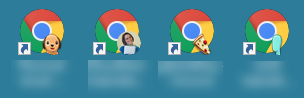
You can use separate Chrome Profiles -- the easiest and most convenient solution.
On a PC
On a Mac

DON’T:
Don’t add another account under your signed-in Google Account. This increases your chance for getting your Google Accounts confused.

Are there any areas in Google tools that you have questions about? Share them in the Comments below.

Are you interested in tips about Google tools? KloudGem Newsletter subscribers get detailed tips and resources right in their inboxes. Sign up here for some KloudGems!

Do you know someone who could use these KloudGem tips? Feel free to send them this link:
https://www.kloudgem.com/follow-resources/newsletter

KloudGem website: www.KloudGem.com