<< BACK TO KLOUDGEM.COM HOME

Tuesday, July 28, 2020

New Sharing Interface in Google Drive

One of Google’s more recent changes is in the look of the sharing window that pops up when you share a Google Drive file (Doc, Sheet, Slides, etc.) or folder. It shows people's access and the general link sharing settings in one, and they have added the ability to copy the file's link in a more simple way:

Google Drive new sharing dialog box screenshot

Do you want to get detailed tips and tricks for working with G Suite right into your inbox? Subscribe to the KloudGem Newsletter and get a bonus "My 5 G Suite Quick Tips to Make Working From Home a Piece of Cake!"

Are there any areas in Google tools that you have questions about? Share them in the Comments below.

Do you know someone who could use these KloudGem tips? Feel free to send them this link:

KloudGem website: www.KloudGem.com

Saturday, June 27, 2020

How to Use the New Shortcut Feature in Google Drive

Recently, Google made a small but mighty change in the way you can add files created by others into your folder structure in Google Drive. If you don't own a file, but it was shared with you, you can right-click (PC) (or two-finger click/Control+click (Mac)) on the file in Google Drive, and choose the option Add shortcut to Drive.

Add Google Drive Shortcut


When you add the file as a Shortcut into your folder structure, you will see a curly arrow on top of the file's icon; for example:

Google Drive Shortcut (to Sheet)


This curly arrow indicates that this is a shortcut pointing/linking to the original file -- not the actual file. A shortcut allows a file to be accessible from more than one folder, without the file being physically in the folder.

Do you want to get tips and tricks like this for working with G Suite, subscribe to the KloudGem Newsletter and get a bonus "My 5 G Suite Quick Tips to Make Working From Home a Piece of Cake!"

Are there any areas in Google tools that you have questions about? Share them in the Comments below.

Do you know someone who could use these KloudGem tips? Feel free to send them this link:

KloudGem website: www.KloudGem.com


Tuesday, May 26, 2020

Google Drive File Stream: The Bridge Between Google and Microsoft

Google Drive is great for remote work and collaboration, but you might also be using Microsoft Office. And that is just fine. You don't have to choose between the two. Google Drive can house both Google files and Microsoft files. To make the experience seamless, Google developed a small utility called Google Drive File Stream (available to G Suite users only) that you can download onto your computer, and it lets you access your Google Drive content from your Windows Explorer or your Mac Finder, giving you the best of both worlds: the flexibility from Google and the formatting from Microsoft.

If you use G Suite, and work in both Google Drive and Microsoft Office, make your life easier with Google Drive File Stream. 

Here is to a sunny day in the cloud!

sun and cloud

Do you want to get detailed tips and tricks for working with G Suite, subscribe to the KloudGem Newsletter HERE.

Are there any areas in Google tools that you have questions about? Share them in the Comments below.

Do you know someone who could use these KloudGem tips? Feel free to send them this link:

KloudGem website: www.KloudGem.com

Monday, May 11, 2020

My 5 G Suite Quick Tips to Make WFH a Piece of Cake!

Without doubt, WFH is going to be one of the most used acronyms of the year 2020. As so many of us have to Work From Home, help kids with their education, navigate uncertainty, we look for ways to maintain relative normalcy in our work interactions. 


To help you with that, this week, I am sharing my favorite G Suite tips for working remotely. Subscribe to the KloudGem Newsletter HERE and get these bonus tips.

Are there any areas in Google tools that you have questions about? Share them in the Comments below.

Do you know someone who could use these KloudGem tips? Feel free to send them this link:

KloudGem website: www.KloudGem.com

Monday, March 30, 2020

Remote Meetings: Hangouts vs. Hangouts Meet? -- The Business Perspective

At a time when video meetings and remote work look to become the norm for at least the foreseeable future, Google’s meeting tools are getting used a lot more.

Google’s most well known video conferencing tools are: Hangouts and Hangouts Meet.

Both tools include the ability to hold one-on-one video calls or group video conferences and easy screen sharing for collaboration.

OK, and what’s the difference?

Hangouts
It’s important to know that the classic Hangouts, while integrated with the free Gmail accounts (and usable with the corresponding Google Calendars), requires people to have either a Gmail, a G Suite, or other type of Google Account to not only create the meeting but also to join as participants.

Hangouts


Hangouts Meet
Hangouts’ younger but more powerful sibling is Hangouts Meet, which is available only to G Suite customers, schools, and nonprofits. Hangouts Meet offers you the ability to video meet with anyone, regardless of whether they have any Google-affiliated accounts; only the host has to have a G Suite account. For the purposes of business use, Hangouts Meet serves the needs much more easily and seamlessly.

Hangouts Meet


Normally, Hangouts Meet comes in these flavors, depending on the G Suite edition the host is using: 
  • G Suite Basic, G Suite for Nonprofits, and G Suite for Education: up to 100 participants in a meeting
  • G Suite Business: up to 150 participants in a meeting
  • G Suite Enterprise and Enterprise for Education: up to 250 participants in a meeting
However, Google recently announced that to help with remote work and remote education during the coronavirus, they would be providing premium features to all G Suite customers through July 1, 2020. 
See their post here:

Are there any areas in Google tools that you have questions about? Share them in the Comments below.

Are you interested in tips about Google tools? KloudGem Newsletter subscribers get detailed tips and resources right in their inboxes. Sign up here for some KloudGems: https://www.kloudgem.com/follow-resources/newsletter

Do you know someone who could use these KloudGem tips? Feel free to send them this link:

KloudGem website: www.KloudGem.com


Saturday, March 14, 2020

4-Step Approach for Schools to Transition to Remote Teaching


Devices, remote teaching/learning

In light of the #coronavirus outbreak, I am helping schools transition to remote teaching and learning. In order to make this useful to more schools worldwide, I am sharing here my 4-step approach to successfully transition your school(s) from IN-CLASS to REMOTE teaching and learning, within a G Suite/Google for Education environment.

Please feel free to pass the link along to those who may need it, and don't hesitate to reach out to me:
https://www.kloudgem.com/remote-teaching-for-schools


KloudGem website: www.KloudGem.com

Saturday, February 29, 2020

How to Use More Than One Google Account and Never Get Them Tangled Up

If you work with at least two Google Accounts (say one @gmail.com account and one G Suite account on your domain, or even two @gmail.com accounts), you know that while you are signed into one, it’s not so straightforward to sign into the other one from the same browser. It’s easy to get the two or more accounts all tangled up in such a way that, for example, when you expect to reach your second account’s Google Drive, you somehow wind up in the first ones’, eventually losing track of where you created which file.

The good news is: this doesn’t have to be this way; you have options!

DO:
You can use a different kind of browser for each account.
or
You can use a private incognito window to access your second account.
or
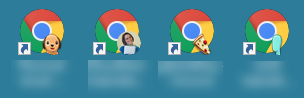
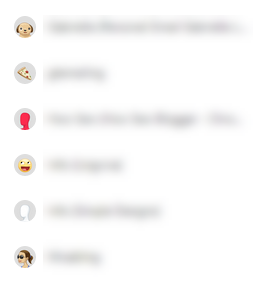
You can use separate Chrome Profiles -- the easiest and most convenient solution.
On a PC
On a Mac

DON’T:
Don’t add another account under your signed-in Google Account. This increases your chance for getting your Google Accounts confused.

Are there any areas in Google tools that you have questions about? Share them in the Comments below.

Are you interested in tips about Google tools? KloudGem Newsletter subscribers get detailed tips and resources right in their inboxes. Sign up here for some KloudGems!

Do you know someone who could use these KloudGem tips? Feel free to send them this link:
https://www.kloudgem.com/follow-resources/newsletter

KloudGem website: www.KloudGem.com